Guide all'installazione di MS Microsoft Office

MS Microsoft Office 2013 Standard

MS Microsoft Office 2013 Standard – Manuale di installazione

⬇️ Scarica

Scegli la tua lingua: consigliamo la versione a 64 bit (adatta a quasi tutti i PC moderni).

🇩🇪Deutsch64 Bit ⬇
🇬🇧English64 Bit ⬇
💡 Non sai quale versione scegliere? Prendi la 64 bit. La versione a 32 bit serve solo per PC molto datati.

Installare e attivare Microsoft Office 2013 Standard

Questa guida ti accompagna passo passo nel download, nell'installazione e nell'attivazione di Microsoft Office 2013 Standard – spiegata con chiarezza.

⏱ circa 15 minuti💻 Windows🔑 Chiave di prodotto necessaria📶 Connessione Internet necessaria

Installazione e attivazione in 4 passaggi

1

Scaricare il file ISO

Scarica la versione desiderata dalla sezione download qui sopra. Se il tuo dispositivo ha più di 4 GB di RAM, consigliamo la versione a 64 bit. Questo file ISO è la base per l'installazione del prodotto.

⚠️ Importante: la chiave acquistata è un codice prepagato e non è compatibile con software preinstallato. Il codice fornito deve corrispondere all’edizione di Office installata. Disinstalla prima la versione precedente di Microsoft Office presente sul tuo PC e riavvia il computer per evitare problemi di compatibilità.
2

Montare il file ISO

Al termine del download, fai clic destro sul file scaricato e scegli l'opzione «Monta» dal menu a discesa.
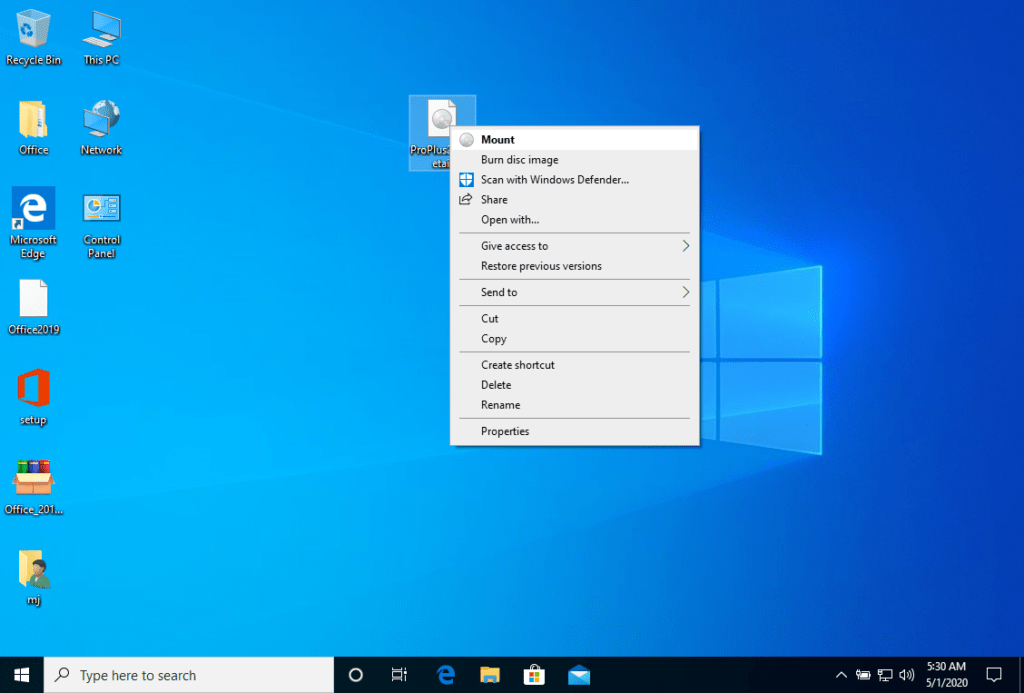
Dopo aver montato il file ISO scaricato, potrai accedervi dal tuo computer come unità DVD. Da lì puoi avviare il programma di installazione.

3

Completare l'installazione e inserire la chiave di prodotto

Completa l'installazione del programma e inserisci la «chiave di attivazione» durante il processo o alla fine.

Una volta completati il download e l'installazione, inserisci la chiave di attivazione quando avvii per la prima volta una qualsiasi applicazione del pacchetto Microsoft Office: sarà la prima cosa che ti verrà richiesta.
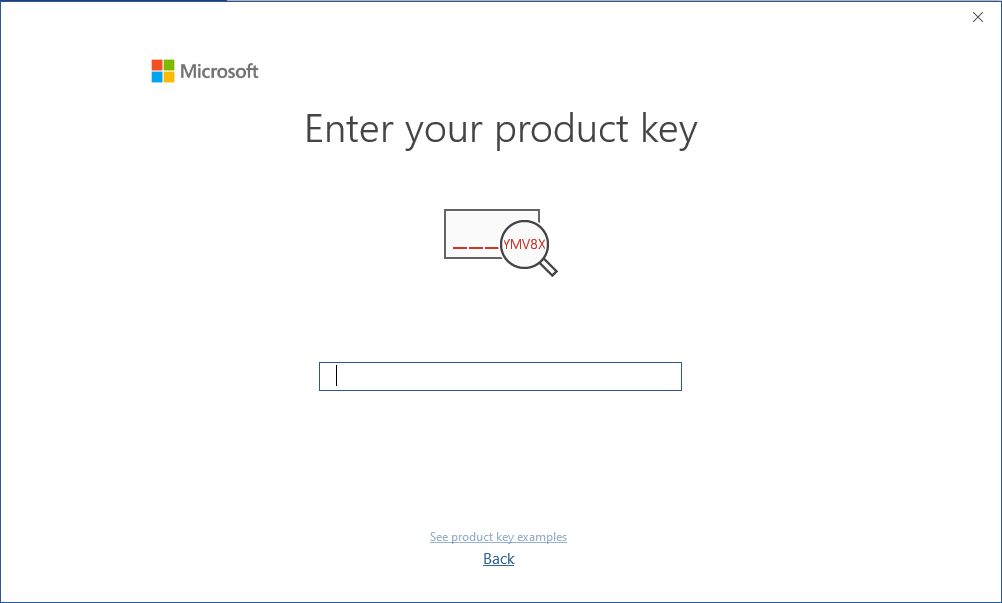
Durante l'installazione di Microsoft Office avresti dovuto ricevere la richiesta di inserire il product key che ti abbiamo inviato. Se ciò non è avvenuto, avvia Word, clicca su «File» e poi su «Account» e inserisci lì la chiave. In caso contrario, il tuo Microsoft Office diventerà una versione di prova dopo 30 giorni.

4

Alternativa: WinCDEmu (ad es. Windows 7)

L'immagine montata dovrebbe comparire sul tuo computer. Se non compare (COME IN WINDOWS 7), devi usare un programma alternativo per montare l'immagine del prodotto, come WinCDEmu, scaricabile dal seguente link:

Scarica WinCDEmu

Usa questo programma per creare un disco virtuale e poter installare il tuo programma.

⚠️ IMPORTANTE: Dopo aver inserito la chiave di prodotto, chiudi completamente l'applicazione Office (ad es. Word) e riaprila. Solo dopo il riavvio il prodotto risulterà attivato.

Requisiti di sistema

  • 🖥 Processore da 1 GHz o superiore (x86/x64)
  • 🧠 1 GB di RAM (32 bit) / 4 GB di RAM (64 bit)
  • 💾 4 GB di spazio libero su disco
  • 🎮 Scheda grafica DirectX 9 con driver WDDM 1.0 o superiore
ℹ️ Se l'attivazione online non riesce (ad es. con il messaggio «limite raggiunto»), nessun problema: usa l'attivazione telefonica tramite il nuovo portale Microsoft – la guida completa passo passo si trova subito sotto questo articolo.

Ti auguriamo un'installazione senza problemi. In caso di difficoltà o domande, il nostro servizio clienti è sempre disponibile: ti aiuteremo il prima possibile.

Precedente
MS Microsoft Office 2013 Professional Plus
Prossimo
MS Microsoft Office 2016 Professional Plus

🆘 Aktivierung fehlgeschlagen („Grenzwert erreicht“)? So aktivieren Sie in 5 Minuten per Telefon

Erscheint beim Aktivieren diese Meldung?

Office-Fehlermeldung: Grenzwert des Mehrfachaktivierungsschlüssels erreicht
„Ihre Installation kann nicht aktiviert werden, weil Sie bereits den Grenzwert Ihres Mehrfachaktivierungsschlüssels erreicht haben…“

Keine Sorge – Ihr Produkt-Key ist gültig! Die Meldung bedeutet nur, dass die automatische Online-Aktivierung für diesen Key ausgeschöpft ist. Genau dafür bietet Microsoft die telefonische Aktivierung an: Sie ist kostenlos, dauert nur wenige Minuten und funktioniert über das neue Microsoft-Portal. Gehen Sie einfach die folgenden Schritte durch:

1

Telefonische Aktivierung im Assistenten wählen

Öffnen Sie Word oder Excel. Der Aktivierungsassistent öffnet sich automatisch (sonst: „Datei → Konto → Produkt aktivieren“). Wählen Sie „Ich möchte die Software über das Telefon aktivieren“ und klicken Sie auf „Weiter“. Es erscheint Ihre Installations-ID (mehrere Zahlenblöcke). Lassen Sie dieses Fenster geöffnet – Sie brauchen es gleich wieder.

2

Das neue Microsoft-Aktivierungsportal öffnen

Öffnen Sie auf einem beliebigen Gerät (auch Smartphone) das offizielle Portal:

🌐 visualsupport.microsoft.com öffnen

Alternativ erreichen Sie die Aktivierungs-Hotline telefonisch unter 0800 2848283 (kostenlos aus Deutschland).

3

Mit Microsoft-Konto anmelden

Melden Sie sich mit einem beliebigen Microsoft-Konto an (Outlook, Hotmail, Live oder Geschäftskonto). Ohne Anmeldung ist die telefonische Aktivierung nicht möglich. Sie haben noch keines? Ein kostenloses Microsoft-Konto ist in 2 Minuten erstellt.

4

Sicherheitsüberprüfung lösen

Klicken Sie auf „Anfangen“ und lösen Sie die kurze Aufgabe. Das ist nur ein Bot-Schutz – es wird nichts installiert und nichts berechnet.

Anleitung: Telefonische Aktivierung über das neue Microsoft-Portal
5

Installations-ID eingeben → Bestätigungs-ID erhalten

Folgen Sie den Anweisungen im Portal: Produkt auswählen und die Installations-ID aus Schritt 1 Block für Block eingeben. Sie erhalten sofort Ihre Bestätigungs-ID. Tragen Sie diese im noch geöffneten Aktivierungsassistenten ein und klicken Sie auf „Aktivieren“.

✅ Geschafft! Schließen Sie Word vollständig und öffnen Sie es erneut – unter „Datei → Konto“ steht jetzt „Produkt aktiviert“.
💡 Tipp: Übertragen Sie die Zahlenblöcke sorgfältig (keine Ziffern verwechseln). Der Telegram-Bot ist jederzeit aktiv und verfügbar; unser Support-Team ist täglich von 10:00 bis 22:00 Uhr erreichbar.
💬Bestätigungs-ID (CID) schnell per Telegram: Sie können die Bestätigungs-ID auch über unseren Telegram-Bot @bulkshopforallsupport_bot anfordern. Senden Sie ein gut lesbares Foto Ihrer Installations-ID oder tippen Sie die Zahlenblöcke ab – der Bot erkennt die Nummern und schickt Ihnen die passende Bestätigungs-ID zurück, die Sie im Aktivierungsassistenten eingeben.

🆘 Activation failed (“activation limit reached”)? Activate by phone in 5 minutes

Do you see this message during activation?

Office error message: multiple activation key limit reached
“Your installation cannot be activated because you have already reached the limit of your multiple activation key…”

Don't worry – your product key is valid! This message only means the automatic online activation for this key has been used up. For exactly this case Microsoft offers telephone activation: it's free, takes just a few minutes and works through the new Microsoft portal. Simply follow these steps:

1

Choose telephone activation in the wizard

Open Word or Excel. The Activation Wizard opens automatically (otherwise: “File → Account → Activate Product”). Select “I want to activate the software by telephone” and click “Next”. Your Installation ID (several blocks of digits) appears. Keep this window open – you'll need it again in a moment.

2

Open the new Microsoft activation portal

On any device (even your smartphone) open the official portal:

🌐 Open visualsupport.microsoft.com

3

Sign in with a Microsoft account

Sign in with any Microsoft account (Outlook, Hotmail, Live or a business account). Telephone activation is not possible without signing in. Don't have one? A free Microsoft account is created in 2 minutes.

4

Complete the security check

Click “Start” and solve the short task. This is just bot protection – nothing is installed and nothing is charged.

Guide: telephone activation via the new Microsoft portal
5

Enter your Installation ID → receive your Confirmation ID

Follow the portal instructions: select your product and enter the Installation ID from step 1 block by block. You immediately receive your Confirmation ID. Type it into the Activation Wizard you left open and click “Activate”.

✅ Done! Close Word completely and open it again – “File → Account” now shows “Product Activated”.
💡 Tip: copy the digit blocks carefully (don't mix up any numbers). The Telegram bot is always active and available; our support team is available every day from 10:00 to 22:00.
💬Get your Confirmation ID (CID) quickly via Telegram: you can also request the Confirmation ID from our Telegram bot @bulkshopforallsupport_bot. Send a clear photo of your Installation ID or type the number blocks – the bot reads the numbers and sends back the matching Confirmation ID to enter in the Activation Wizard.

🆘 Activation échouée (« limite atteinte ») ? Activez par téléphone en 5 minutes

Ce message apparaît-il lors de l'activation ?

Message d'erreur Office : limite de la clé d'activation multiple atteinte
« Votre installation ne peut pas être activée, car vous avez déjà atteint la limite de votre clé d'activation multiple… »

Pas d'inquiétude – votre clé de produit est valide ! Ce message signifie seulement que l'activation automatique en ligne de cette clé est épuisée. C'est exactement pour ce cas que Microsoft propose l'activation par téléphone : gratuite, elle ne prend que quelques minutes et passe par le nouveau portail Microsoft. Suivez simplement ces étapes :

1

Choisir l'activation par téléphone dans l'assistant

Ouvrez Word ou Excel. L'assistant d'activation s'ouvre automatiquement (sinon : « Fichier → Compte → Activer le produit »). Sélectionnez « Je souhaite activer le logiciel par téléphone » puis cliquez sur « Suivant ». Votre ID d'installation (plusieurs blocs de chiffres) s'affiche. Laissez cette fenêtre ouverte – vous en aurez besoin dans un instant.

2

Ouvrir le nouveau portail d'activation Microsoft

Sur n'importe quel appareil (même votre smartphone), ouvrez le portail officiel :

🌐 Ouvrir visualsupport.microsoft.com

3

Se connecter avec un compte Microsoft

Connectez-vous avec n'importe quel compte Microsoft (Outlook, Hotmail, Live ou compte professionnel). Sans connexion, l'activation par téléphone n'est pas possible. Pas de compte ? Un compte Microsoft gratuit se crée en 2 minutes.

4

Effectuer la vérification de sécurité

Cliquez sur « Commencer » et résolvez la petite tâche. Il s'agit d'une simple protection anti-bot – rien n'est installé ni facturé.

Guide : activation par téléphone via le nouveau portail Microsoft
5

Saisir l'ID d'installation → recevoir l'ID de confirmation

Suivez les instructions du portail : sélectionnez votre produit et saisissez l'ID d'installation de l'étape 1 bloc par bloc. Vous recevez immédiatement votre ID de confirmation. Saisissez-le dans l'assistant d'activation resté ouvert et cliquez sur « Activer ».

✅ Terminé ! Fermez complètement Word puis rouvrez-le – « Fichier → Compte » affiche désormais « Produit activé ».
💡 Astuce : recopiez soigneusement les blocs de chiffres (sans en inverser). Le bot Telegram est toujours actif et disponible ; notre équipe d’assistance est joignable tous les jours de 10 h 00 à 22 h 00.
💬Obtenez votre ID de confirmation (CID) rapidement via Telegram : vous pouvez aussi demander l'ID de confirmation à notre bot Telegram @bulkshopforallsupport_bot. Envoyez une photo lisible de votre ID d'installation ou saisissez les blocs de chiffres – le bot lit les numéros et vous renvoie l'ID de confirmation à saisir dans l'assistant d'activation.

🆘 ¿Activación fallida («límite alcanzado»)? Active por teléfono en 5 minutos

¿Aparece este mensaje durante la activación?

Mensaje de error de Office: límite de la clave de activación múltiple alcanzado
«Su instalación no se puede activar porque ya ha alcanzado el límite de su clave de activación múltiple…»

No se preocupe: ¡su clave de producto es válida! Este mensaje solo significa que la activación automática en línea de esta clave se ha agotado. Precisamente para este caso Microsoft ofrece la activación telefónica: es gratuita, tarda solo unos minutos y funciona a través del nuevo portal de Microsoft. Siga estos pasos:

1

Elegir la activación telefónica en el asistente

Abra Word o Excel. El asistente de activación se abre automáticamente (si no: «Archivo → Cuenta → Activar producto»). Seleccione «Deseo activar el software por teléfono» y haga clic en «Siguiente». Aparecerá su ID de instalación (varios bloques de cifras). Deje esta ventana abierta: la necesitará enseguida.

2

Abrir el nuevo portal de activación de Microsoft

En cualquier dispositivo (incluso su smartphone) abra el portal oficial:

🌐 Abrir visualsupport.microsoft.com

3

Iniciar sesión con una cuenta Microsoft

Inicie sesión con cualquier cuenta Microsoft (Outlook, Hotmail, Live o cuenta de empresa). Sin iniciar sesión, la activación telefónica no es posible. ¿No tiene una? Una cuenta Microsoft gratuita se crea en 2 minutos.

4

Superar la comprobación de seguridad

Haga clic en «Empezar» y resuelva la breve tarea. Es solo una protección anti-bots: no se instala ni se cobra nada.

Guía: activación telefónica a través del nuevo portal de Microsoft
5

Introducir el ID de instalación → recibir el ID de confirmación

Siga las instrucciones del portal: seleccione su producto e introduzca el ID de instalación del paso 1 bloque por bloque. Recibirá al instante su ID de confirmación. Escríbalo en el asistente de activación que dejó abierto y haga clic en «Activar».

✅ ¡Listo! Cierre Word por completo y vuelva a abrirlo: en «Archivo → Cuenta» ahora aparece «Producto activado».
💡 Consejo: copie los bloques de cifras con cuidado (sin confundir números). El bot de Telegram está siempre activo y disponible; nuestro equipo de asistencia está disponible todos los días de 10:00 a 22:00.
💬Obtén tu ID de confirmación (CID) rápidamente por Telegram: también puedes solicitar el ID de confirmación a nuestro bot de Telegram @bulkshopforallsupport_bot. Envía una foto legible de tu ID de instalación o escribe los bloques de números: el bot los reconoce y te devuelve el ID de confirmación para introducir en el asistente de activación.

🆘 Attivazione non riuscita («limite raggiunto»)? Attiva per telefono in 5 minuti

Durante l'attivazione compare questo messaggio?

Messaggio di errore Office: limite della chiave di attivazione multipla raggiunto
«L'installazione non può essere attivata perché è già stato raggiunto il limite della chiave di attivazione multipla…»

Nessun problema: la tua chiave di prodotto è valida! Il messaggio significa solo che l'attivazione automatica online di questa chiave è esaurita. Proprio per questo caso Microsoft offre l'attivazione telefonica: è gratuita, richiede pochi minuti e passa dal nuovo portale Microsoft. Segui questi passaggi:

1

Scegli l'attivazione telefonica nella procedura guidata

Apri Word o Excel. La procedura di attivazione si apre automaticamente (altrimenti: «File → Account → Attiva prodotto»). Seleziona «Desidero attivare il software telefonicamente» e fai clic su «Avanti». Comparirà il tuo ID di installazione (diversi blocchi di cifre). Lascia aperta questa finestra: ti servirà tra poco.

2

Apri il nuovo portale di attivazione Microsoft

Da qualsiasi dispositivo (anche dallo smartphone) apri il portale ufficiale:

🌐 Apri visualsupport.microsoft.com

3

Accedi con un account Microsoft

Accedi con un qualsiasi account Microsoft (Outlook, Hotmail, Live o account aziendale). Senza accesso l'attivazione telefonica non è possibile. Non ne hai uno? Un account Microsoft gratuito si crea in 2 minuti.

4

Completa la verifica di sicurezza

Fai clic su «Inizia» e risolvi il breve compito. È solo una protezione anti-bot: non viene installato né addebitato nulla.

Guida: attivazione telefonica tramite il nuovo portale Microsoft
5

Inserisci l'ID di installazione → ricevi l'ID di conferma

Segui le istruzioni del portale: seleziona il prodotto e inserisci l'ID di installazione del passaggio 1 blocco per blocco. Riceverai subito il tuo ID di conferma. Inseriscilo nella procedura di attivazione rimasta aperta e fai clic su «Attiva».

✅ Fatto! Chiudi completamente Word e riaprilo: in «File → Account» ora compare «Prodotto attivato».
💡 Suggerimento: trascrivi i blocchi di cifre con attenzione (senza invertire i numeri). Il bot Telegram è sempre attivo e disponibile; il nostro team di assistenza è disponibile tutti i giorni dalle 10:00 alle 22:00.
💬Ottieni il tuo ID di conferma (CID) rapidamente via Telegram: puoi richiedere l'ID di conferma anche al nostro bot Telegram @bulkshopforallsupport_bot. Invia una foto leggibile del tuo ID di installazione oppure digita i blocchi di numeri: il bot li riconosce e ti restituisce l'ID di conferma da inserire nella procedura di attivazione.

🆘 Etkinleştirme başarısız («sınıra ulaşıldı») mı? 5 dakikada telefonla etkinleştirin

Etkinleştirme sırasında bu mesaj mı görünüyor?

Office hata mesajı: çoklu etkinleştirme anahtarı sınırına ulaşıldı
«Kurulumunuz etkinleştirilemiyor çünkü çoklu etkinleştirme anahtarınızın sınırına zaten ulaştınız…»

Endişelenmeyin – ürün anahtarınız geçerlidir! Bu mesaj yalnızca bu anahtarın otomatik çevrimiçi etkinleştirme hakkının dolduğu anlamına gelir. Microsoft tam da bu durum için telefonla etkinleştirme sunar: ücretsizdir, yalnızca birkaç dakika sürer ve yeni Microsoft portalı üzerinden çalışır. Şu adımları izleyin:

1

Sihirbazda telefonla etkinleştirmeyi seçin

Word veya Excel'i açın. Etkinleştirme sihirbazı otomatik olarak açılır (açılmazsa: «Dosya → Hesap → Ürünü Etkinleştir»). «Yazılımı telefonla etkinleştirmek istiyorum» seçeneğini seçip «İleri»ye tıklayın. Yükleme kimliğiniz (birkaç rakam bloğu) görünür. Bu pencereyi açık bırakın – birazdan yine gerekecek.

2

Yeni Microsoft etkinleştirme portalını açın

Herhangi bir cihazda (akıllı telefonunuzda bile) resmi portalı açın:

🌐 visualsupport.microsoft.com'u aç

3

Microsoft hesabıyla oturum açın

Herhangi bir Microsoft hesabıyla oturum açın (Outlook, Hotmail, Live veya iş hesabı). Oturum açmadan telefonla etkinleştirme mümkün değildir. Hesabınız yok mu? Ücretsiz bir Microsoft hesabı 2 dakikada oluşturulur.

4

Güvenlik doğrulamasını tamamlayın

«Başla» düğmesine tıklayın ve kısa görevi çözün. Bu yalnızca bot korumasıdır – hiçbir şey yüklenmez ve ücret alınmaz.

Kılavuz: yeni Microsoft portalı üzerinden telefonla etkinleştirme
5

Yükleme kimliğini girin → Onay kimliğini alın

Portaldaki talimatları izleyin: ürününüzü seçin ve 1. adımdaki Yükleme kimliğini blok blok girin. Onay kimliğinizi hemen alırsınız. Açık bıraktığınız etkinleştirme sihirbazına yazın ve «Etkinleştir»e tıklayın.

✅ Tamamlandı! Word'ü tamamen kapatıp yeniden açın – «Dosya → Hesap» altında artık «Ürün Etkinleştirildi» görünür.
💡 İpucu: rakam bloklarını dikkatle aktarın (rakamları karıştırmayın). Telegram botu her zaman aktif ve erişilebilirdir; destek ekibimiz her gün 10:00–22:00 saatleri arasında hizmet vermektedir.
💬Onay kimliğinizi (CID) Telegram üzerinden hızlıca alın: Onay kimliğini Telegram botumuz @bulkshopforallsupport_bot üzerinden de talep edebilirsiniz. Yükleme kimliğinizin okunaklı bir fotoğrafını gönderin veya rakam bloklarını yazın – bot numaraları tanır ve etkinleştirme sihirbazına gireceğiniz onay kimliğini geri gönderir.